
How to Install IPTV Smarters Pro on Amazon Firestick in UK (2026)
Are you looking for a straightforward way to stream live television channels, movies, and catch-up programmes directly through your television? Learning how to get IPTV Smarters Pro on Firestick is essential for anyone wanting to elevate their home entertainment setup in the United Kingdom. With Amazon’s streaming device being exceptionally popular across British households, combining it with a reliable media player opens up a world of flexible viewing options. In this comprehensive guide, we will walk you through everything required to sideload, configure, and optimise your application safely and efficiently.
What is IPTV Smarters Pro and Why Use It?
Before diving into the technical installation process, it helps to understand what makes this particular application a favourite among streaming enthusiasts. IPTV Smarters Pro on Firestick functions as an advanced media player designed to organise and stream live TV channels, video-on-demand (VOD) content, and series. Rather than hosting content itself, the application acts as a sleek dashboard that connects securely to your chosen best IPTV UK subscription provider.
British users appreciate this application because of its clean Electronic Programme Guide (EPG), multi-screen functionality, support for external video players, and parental control features. It delivers a television-like experience through a remote-friendly interface, making channel surfing effortless from your sofa.
Preparing Your Amazon Firestick for Installation
Because Amazon’s official Appstore has specific regional and content policies, third-party applications like Smarters Pro often need to be sideloaded using a utility tool. To prepare your device for this process, you must enable installation from unknown sources within your Fire TV settings. Follow these quick configuration steps before proceeding:
- Turn on your Fire TV device and navigate to the home screen.
- Select the Settings icon (gear symbol) on the far right of the main menu bar.
- Scroll across and select My Fire TV (or Device & Software on older firmware versions).
- Click on Developer Options. If this option is missing, go to About, highlight your Fire TV Stick, and click the OK button on your remote 7 times until a notification confirms you are a developer.
- Select Install Unknown Apps and toggle the setting to On for the Downloader application.
Step-by-Step: Installing the Downloader App
The Downloader app by AFTVnews is an indispensable tool available directly through the official Amazon Appstore. It allows you to download APK files straight from the internet onto your streaming stick. If you have ever wondered how developers test apps or how users manage local files, checking official documentation like Android developer guidelines gives great insight into how versatile the Android ecosystem truly is.
To install Downloader, return to your home screen, click the search magnifying glass, type Downloader, and select it from the suggestions. Click the download or get button, and wait a few moments for the installation to finish automatically.
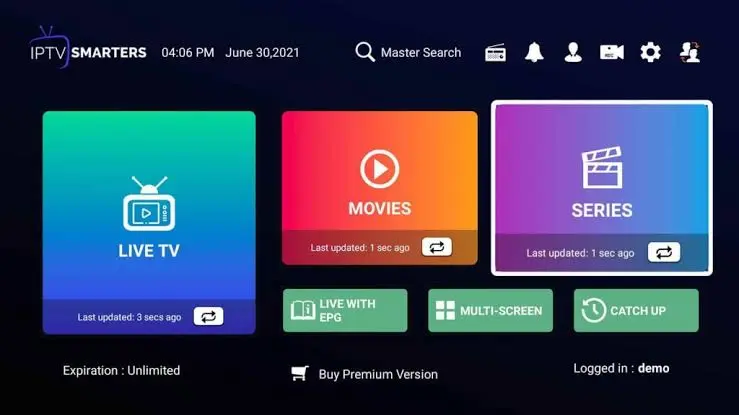
Setting up your media player for seamless streaming across British channels.
Looking for buffer-free live sports and UK channels?
Upgrade your entertainment setup today with our premium streaming plans designed for maximum reliability.
Downloading and Installing IPTV Smarters Pro
With the Downloader utility fully configured, you can now acquire the official application package. Open the Downloader app and click on the URL input box on the home screen.
Entering the Direct Download URL
Carefully type the official URL or shorthand code for the application file into the browser bar. Many trusted streaming guides and providers supply shortened numerical codes (such as Downloader short codes) to make typing with a Firestick remote much faster. Once entered, click Go.
Completing the Installation Process
The APK file will begin downloading to your local device storage. When the download finishes, a prompt will appear asking if you want to install the application. Click Install. After installation completes, select Done rather than opening it immediately so you can delete the installation file and save valuable storage space on your device.
Configuring Your Subscription Details
Once opened for the first time, IPTV Smarters Pro on Firestick will prompt you to accept the terms of service and select your login method. The most reliable connection method supported by providers is the Xtream Codes API login. If you need a refresher on how these login credentials work, you can consult our detailed setup IPTV on Smart TV guide which follows a similar structure.
Select Login with Xtream Codes API and enter the following details provided in your welcome email:
- Any Name: Give your playlist a recognisable title (e.g., My UK TV).
- Username: Provided by your streaming service.
- Password: Your unique secure password.
- Server URL: The portal address provided (including
http://orhttps://and the port number).
Click Add User. The application will instantly begin downloading live channels, movie categories, and television guides.
Troubleshooting Common Streaming Issues
Even with a smooth installation, occasional technical hiccups can occur. If channels take too long to load or buffering disrupts your viewing experience, try these quick fixes:
- Clear App Cache: Go to Fire TV Settings > Applications > Manage Installed Applications > IPTV Smarters Pro, and clear cache.
- Verify your internet connection speed using an online speed test tool to ensure your broadband meets the 25 Mbps minimum for HD/4K streaming.
- Restart both your Firestick and your home Wi-Fi router to clear temporary network bottlenecks.
Frequently Asked Questions
Is IPTV Smarters Pro legal to use in the UK?
Yes, the application itself is 100% legal and functions purely as a media player. However, the legality depends entirely on the content source and subscription provider you connect to it.
Why does my EPG (TV Guide) fail to load?
If your guide is empty, go to the application settings, click on Refresh EPG, or check with your provider to ensure your portal URL is active and correct.
Can I use this app on multiple Amazon Fire devices?
Yes, you can install the application on multiple compatible devices in your household, though simultaneous stream limits depend on your specific subscription plan.
Do I need a VPN when using streaming apps in the UK?
Many users choose to use a Virtual Private Network (VPN) to prevent internet service provider throttling and secure their online privacy while streaming.
Conclusion
Setting up your entertainment hub is a straightforward process once you follow the correct steps. Getting IPTV Smarters Pro on Firestick transforms your television into a powerful media centre offering endless channels and on-demand entertainment. By following this guide, you have successfully prepared your device, installed the necessary tools, and configured your portal details for seamless viewing.
Ready for Ultimate Entertainment?
Get instant access to thousands of live channels, sports, and movies with zero buffering. Subscribe today and experience premium streaming.